
Support Prayer Wheel
Help keep Prayer Wheel free for every church. Your gift funds updates, new features, and help for churches getting started.
User Guide
Updated November 4, 2026 · Prayer Wheel 1.12
How to pray with the Prayer Wheel, get the most from it on a phone, and set it up on a church website. Try it on your phone at prayerwheel.church, or read more on the Prayer Wheel page.
- What the Prayer Wheel is
- Praying with the Prayer Wheel
- Phone tips
- For site admins
- Privacy, Scripture, and common questions
What the Prayer Wheel is
The Prayer Wheel guides you through twelve short movements of prayer on your phone or computer, with a gentle timer that moves you from one to the next. It is adapted from Dick Eastman’s prayer wheel in The Hour That Changes the World.
The movements fall into three groups: look UP to God (Presence), welcome His work IN you (Formation), and pray OUT for others and the world (Mission).
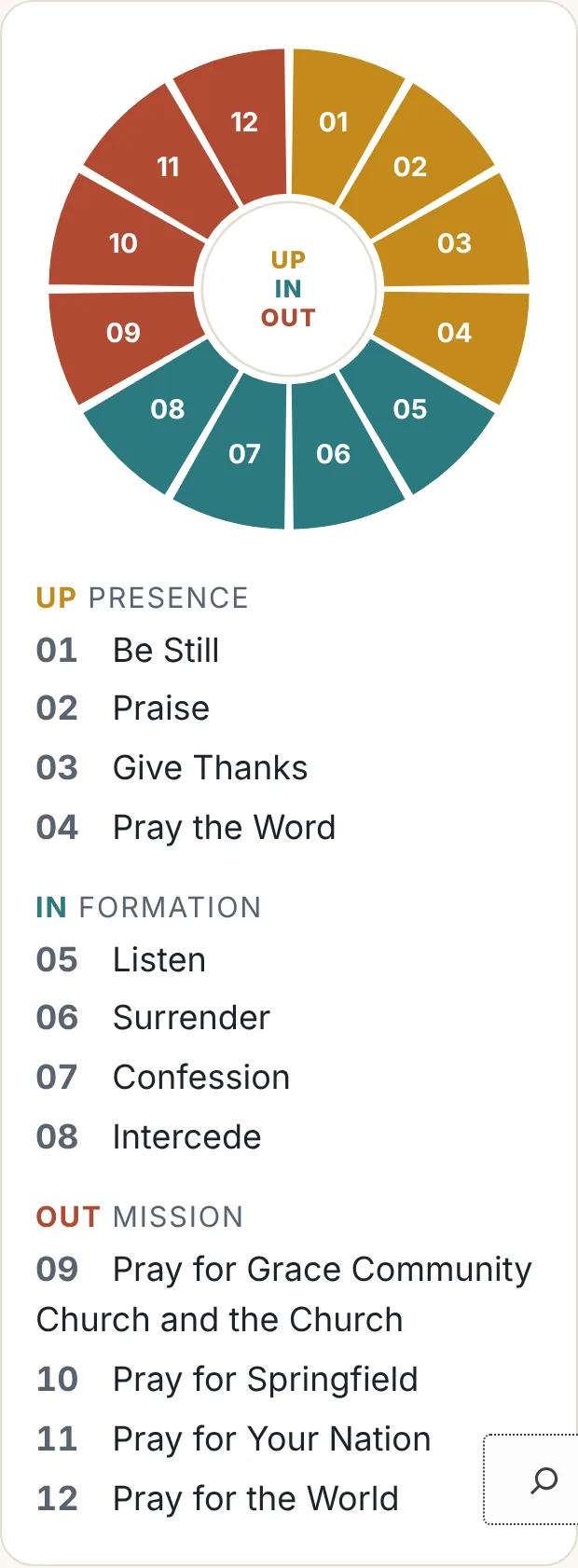
The wheel and its twelve movements, four in each group: UP (gold), IN (teal), and OUT (red).
| # | Movement | Group |
|---|---|---|
| 01 | Be Still | UP |
| 02 | Praise | UP |
| 03 | Give Thanks | UP |
| 04 | Pray the Word | UP |
| 05 | Listen | IN |
| 06 | Surrender | IN |
| 07 | Confession | IN |
| 08 | Intercede | IN |
| 09 | Pray for [your church] and the Church | OUT |
| 10 | Pray for [your city] | OUT |
| 11 | Pray for Your Nation | OUT |
| 12 | Pray for the World | OUT |
The first three parts of this guide are for anyone praying. Part 4 is for the person who runs the church website.
Praying with the Prayer Wheel
Tap Begin Prayer and the wheel walks you through each movement. First time? Tap New to the Prayer Wheel? for a simple 15-minute prayer through all twelve.
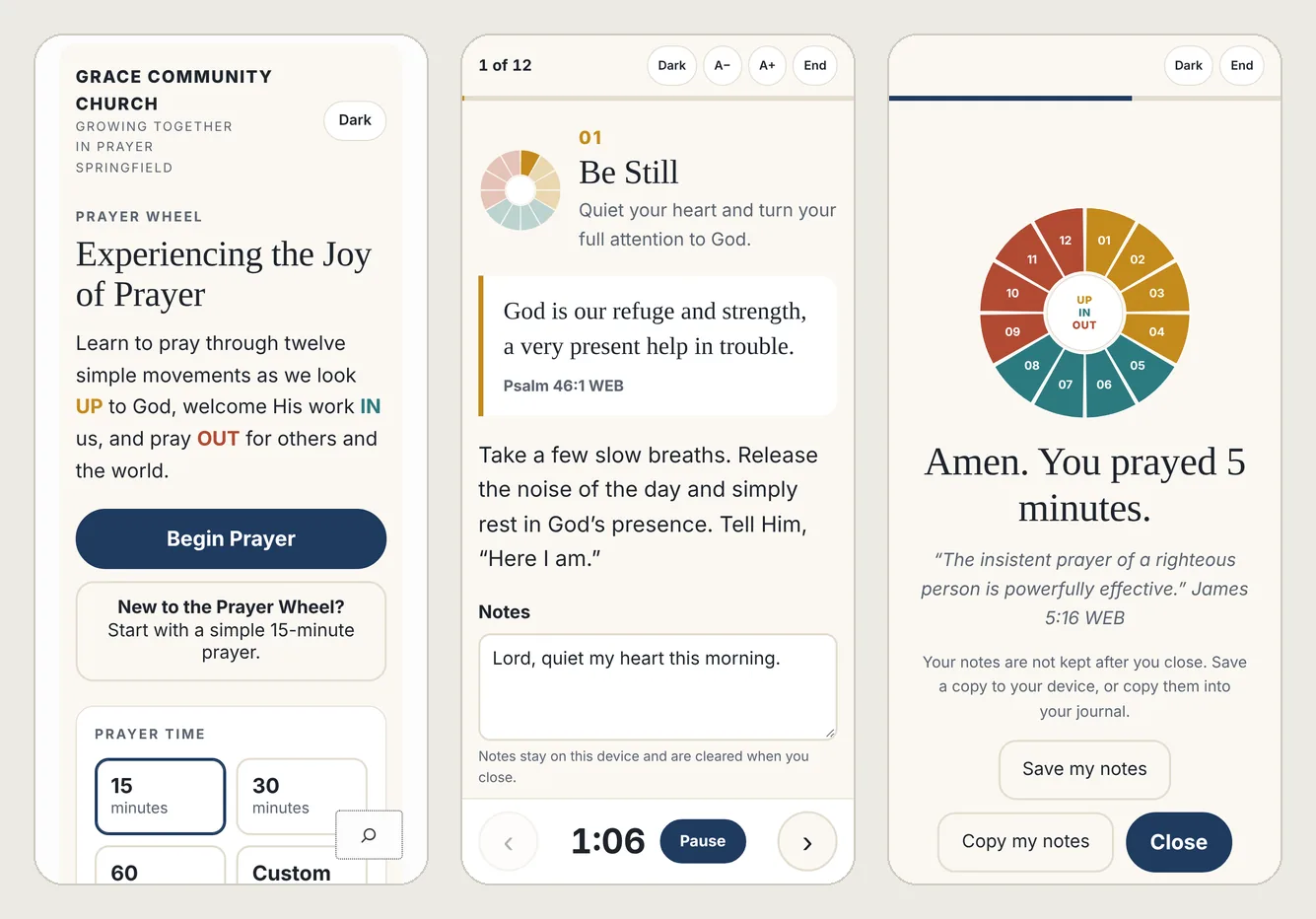
From left: the welcome page, a movement during prayer, and the finish screen.
Set up your prayer
- Choose a prayer time. Pick 15, 30, or 60 minutes, Custom to type your own (1 to 240), or Open for no timer. The line under the choices shows about how long each movement gets; at 15 minutes it is about 1:15 each.
- Choose an experience. Simple Prayer shows one Scripture and one prompt per movement. Full Prayer adds more (see below).
- Short on time? Open Don’t have time for all 12 movements? and uncheck any you want to skip, or tap UP, IN, or OUT to pray just that group. Tap All to bring them back.
- Tap Begin Prayer.
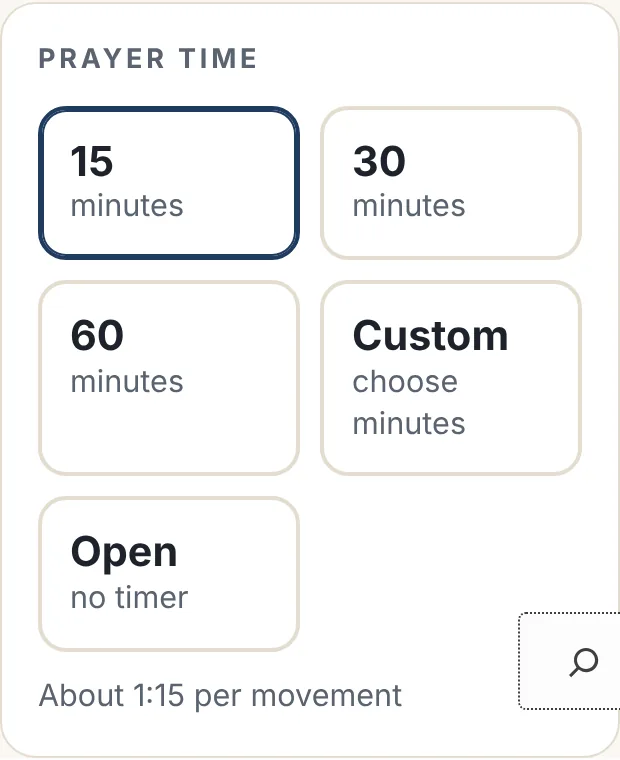
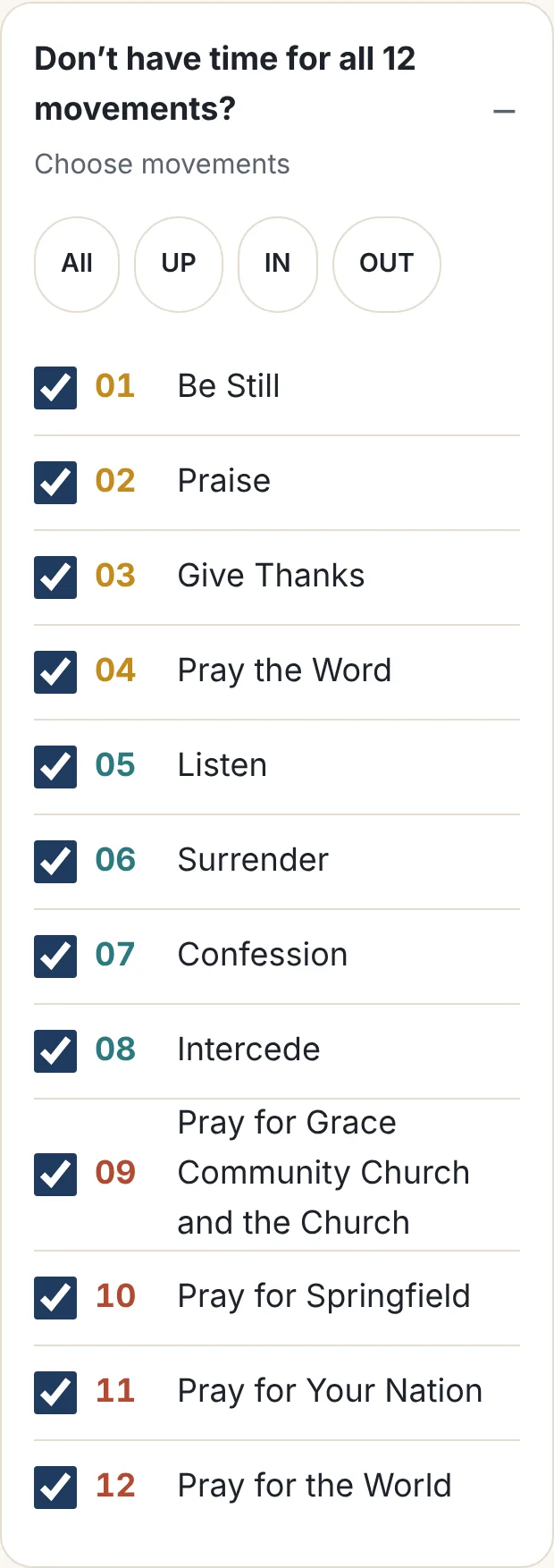
Prayer Time (top) and the Choose movements panel (bottom).
Your choices are remembered on that phone or computer for next time.
The prayer screen
Each movement shows its title, a Scripture passage, and a prayer prompt. The small wheel at the top shows where you are. When the timer reaches zero, the next movement begins on its own.
The Light / Dark button sits at the top of every screen: the welcome page and the prayer screen’s top bar, including the pause and finish screens. Your choice is remembered on that phone or computer.
| Control | What it does |
|---|---|
| ‹ and › | Go back to the previous movement or skip ahead |
| Pause / Resume | Stop and restart the timer |
| A− and A+ | Make the text smaller or larger |
| End | Finish now and see how long you prayed |
| Notes box | Write what you sense God saying or what you are praying |
In Open mode the clock counts up instead of down, and you tap › when you are ready to move on. On a computer, the arrow keys go back and forward, the space bar pauses, and Esc ends.
Full Prayer extras
- Today’s focus: several movements highlight one theme for each day of the week. On Wednesday, for example, Pray for Your City focuses on first responders. Pray for the World calls it the World prayer focus.
- Keep praying: two or three extra prompts.
- Read and reflect: more Scripture references. Tap one to read the passage in a pop-out, with verse numbers; close it with ×, Close, or a tap outside it.
- Your prayer requests: during Intercede, type a request and tap Add. It stays on your phone for next time. Tap Answered to remove it.
- Prayer lists: expandable lists to pray through one by one. Tap a View all button to open one and Show less to close it. Pray for the World includes your church’s missionaries, countries with prayer prompts, ten ways to pray for persecuted Christians, and how to pray for global situations, with each missionary shown as a card with their photo. Pray for the Church features a few churches in your city each day, with the full list underneath.
- Resources: links your church has added, if any.
- Sources & credits: where a movement’s lists and prompts come from, when your church adds them.
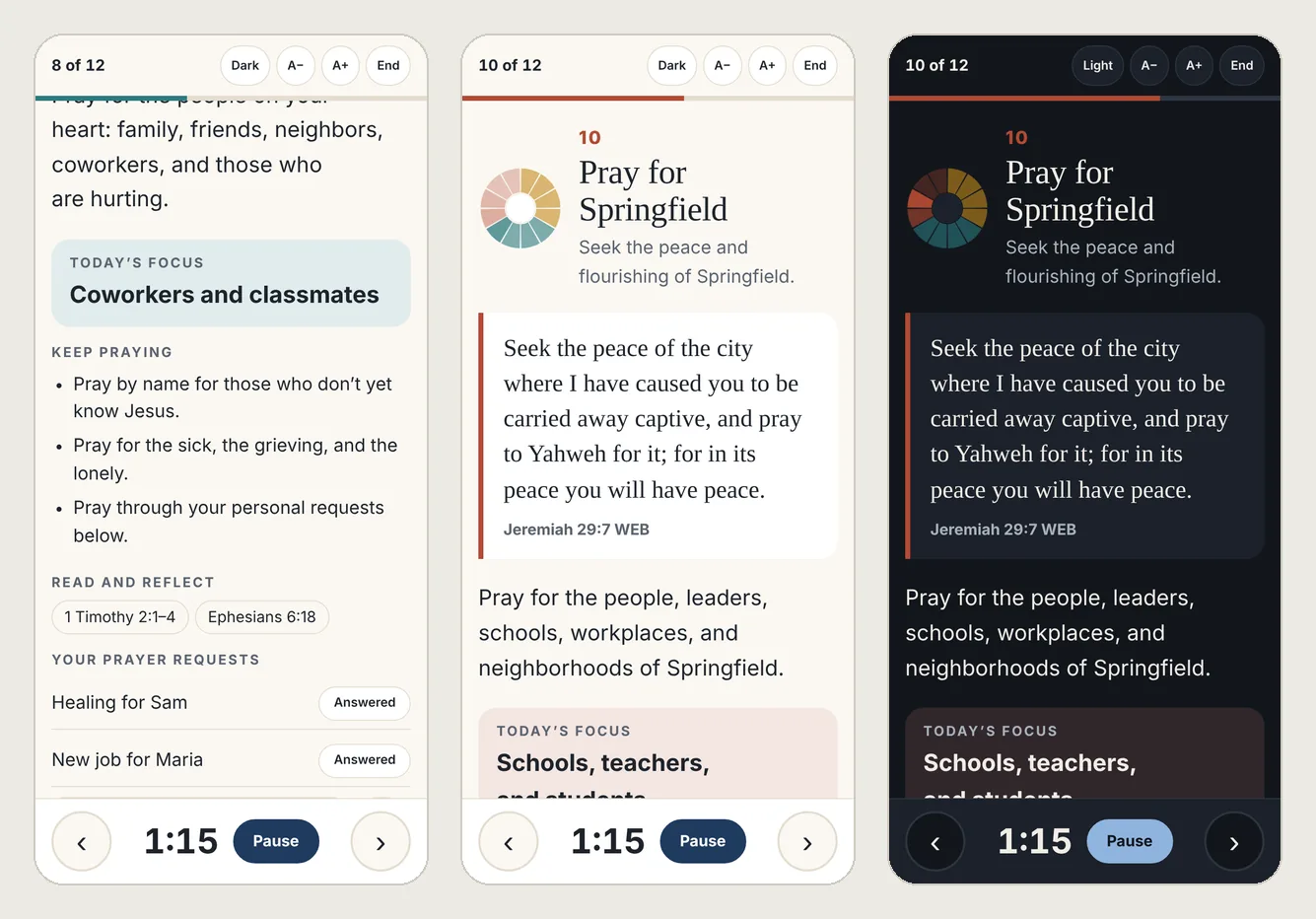
Full Prayer: Intercede with today’s focus and personal requests, Pray for Springfield (the City movement), and the same screen in dark mode.
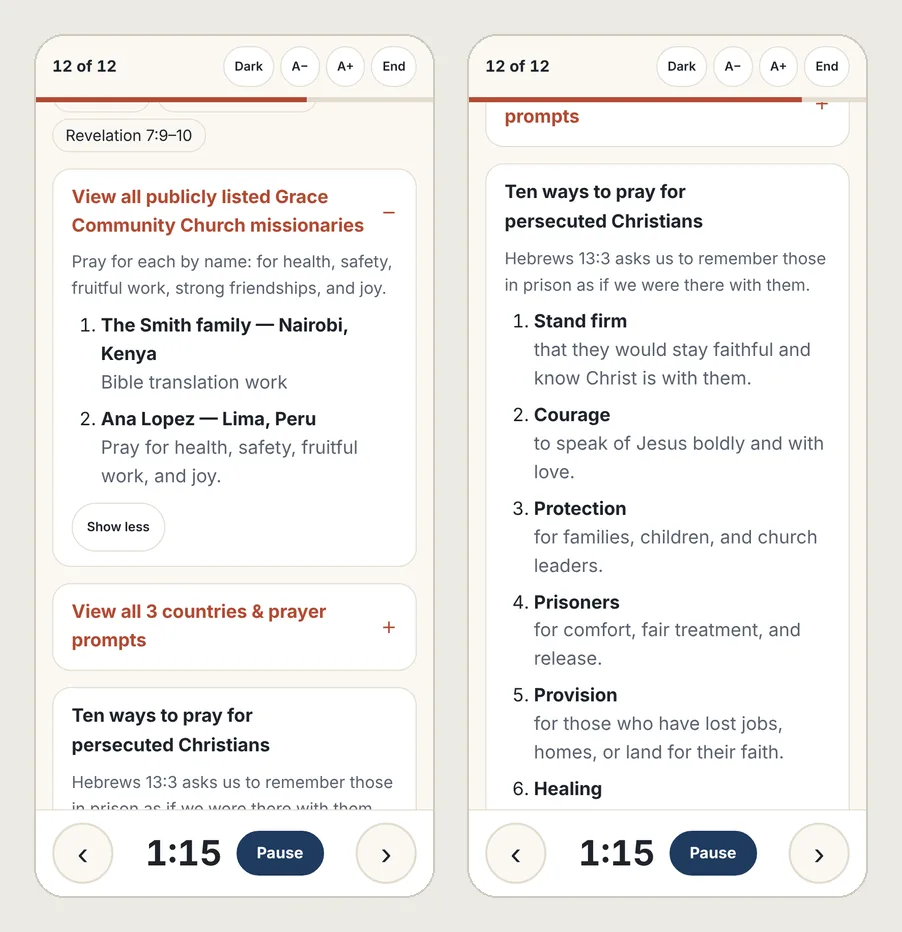
Pray for the World: the church’s missionaries opened, a country list behind its View all button, and ten ways to pray for persecuted Christians.
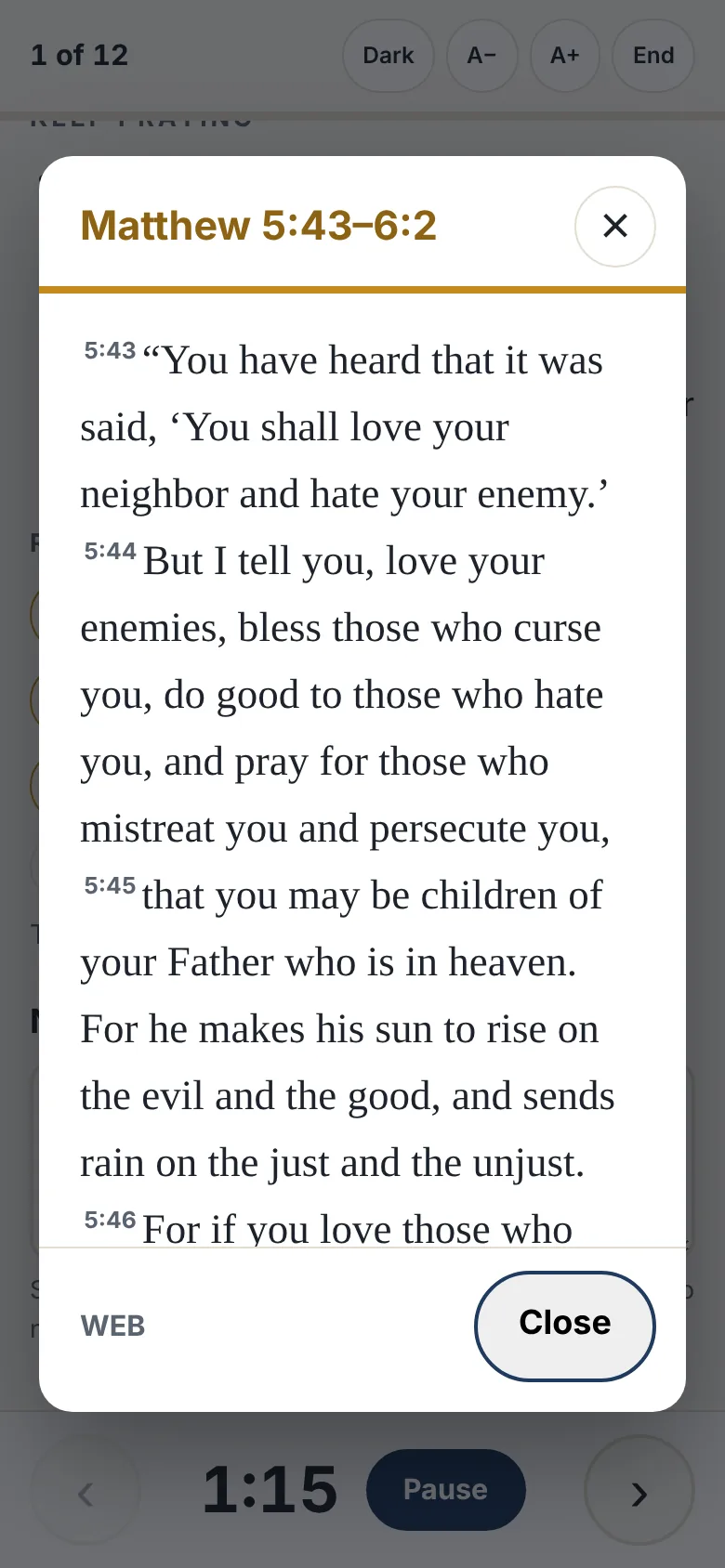
Tap a Read and reflect reference to read the passage.
When you finish
You’ll see how many minutes you prayed. If you wrote notes, two buttons appear before Close:
- Save my notes saves a text file named with today’s date, such as prayer-notes-2026-11-03.txt. On a phone it opens the share sheet, so you can choose Save to Files, Notes, or email. On a computer it downloads the file.
- Copy my notes copies the same text so you can paste it into a journal app.
Each note is tagged with its movement number and name, its group (UP, IN, or OUT), the Scripture reference and passage you saw, and in Full Prayer the day’s focus.
Today’s notes are kept privately in this browser on this device, so they are still there if you pray again later the same day. They do not move to another phone or browser, and they are never sent to the church website. Tap Clear today’s notes to remove them. If your church has turned this off, notes are erased when you tap Close, so save or copy them first.
Phone tips
These options live under Prayer tools & settings on the Prayer Wheel page. Set them up before you tap Begin Prayer.
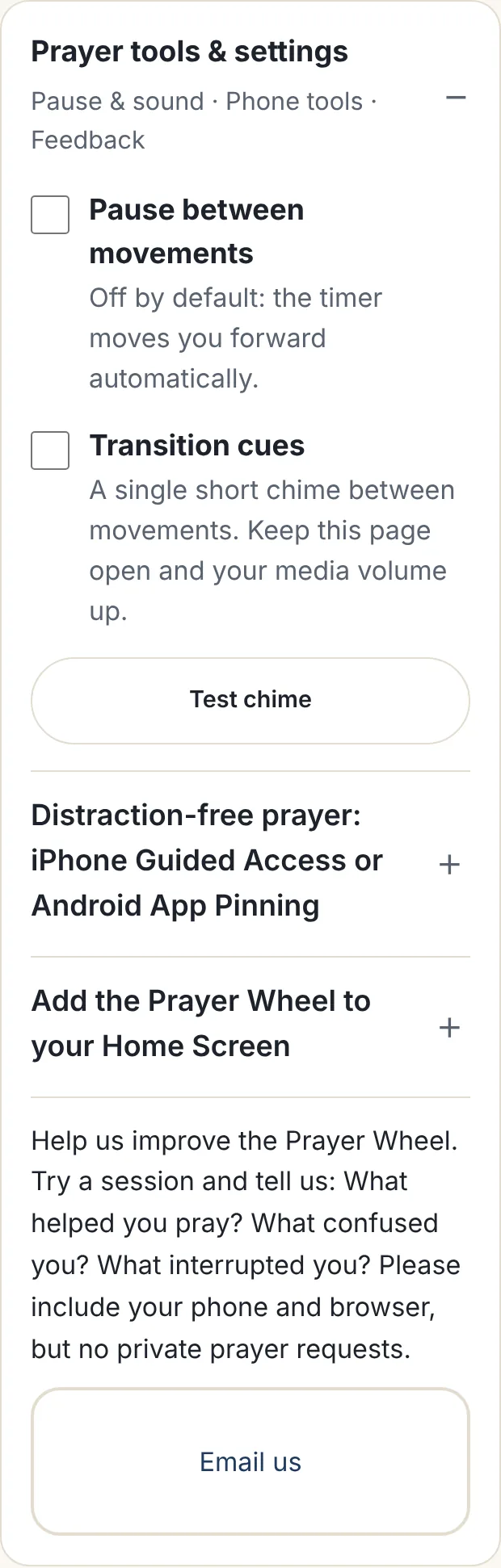
Sound and pauses
- Transition cues: turn on a soft chime between movements, then tap Test chime. Keep the page open and your media volume up; most phones won’t play it with the screen locked.
- Pause between movements: when it’s on, the wheel waits after each movement and shows what’s next. Tap Continue when you’re ready. It’s off by default.
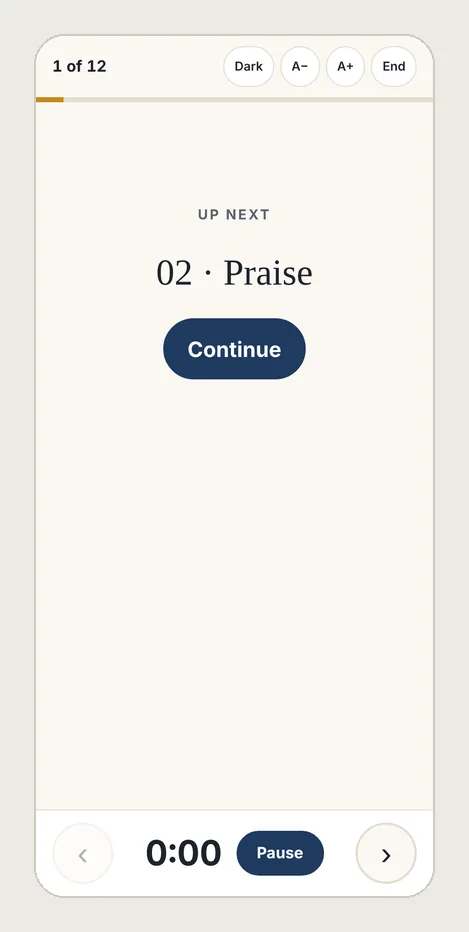
With Pause between movements on, the wheel waits and shows what’s next.
Keep the screen on
On most current phones and browsers, the screen stays awake while the timer runs. If yours still dims, use Guided Access or App Pinning below.
Pray without distractions
iPhone (Guided Access)
- Open Settings → Accessibility → Guided Access and turn it on. Set a passcode or Face ID.
- In Guided Access settings, set Display Auto-Lock to Never.
- Open the Prayer Wheel in Safari and triple-click the side button.
- Optional: circle any part of the screen you don’t want to respond to touch.
- Tap Start. Triple-click the side button again when you’re done.
After praying: set Display Auto-Lock back to your usual time if you don’t want the screen to stay on.
Android (App Pinning)
- Open Settings → Security & privacy → More security settings → App pinning and turn it on. Menu names vary by phone.
- Open the Prayer Wheel in Chrome, then open your recent apps.
- Tap the Chrome icon above its preview and choose Pin. When you’re finished, use the unpin gesture your phone shows.
Add it to your Home Screen
- iPhone (Safari): open the page in Safari, tap Share → Add to Home Screen, leave Open as Web App on, and tap Add. The page links to Apple’s illustrated instructions.
- Android (Chrome): open the page in Chrome, tap the three-dot menu → Add to Home screen (or Install app) → Add. The page links to Google’s instructions.
The Prayer Wheel then opens from its own icon like an app.
For site admins
The plugin needs WordPress 6.3 or later and PHP 7.4 or later. Everything is managed under Prayer Wheel in the WordPress admin menu; you need administrator access.
Install and add to a page
- Go to Plugins → Add New → Upload Plugin, choose prayer-wheel.zip, then Install and Activate.
- The first time you activate it, a Welcome to the Prayer Wheel screen opens. Choose the World English Bible (WEB) or the King James Version (KJV). Both are public domain. Leave Also add 11 starter verses checked so movements rotate between passages from day one, then click Load Scripture and continue. This is asked only once; until you choose, a reminder appears on the Plugins screen and a Finish setup link sits in the Prayer Wheel menu.
- Create or edit a page and add the Prayer Wheel block. Or paste the shortcode [[[prayer_wheel]]].
- Publish the page and open it on your phone to check it.
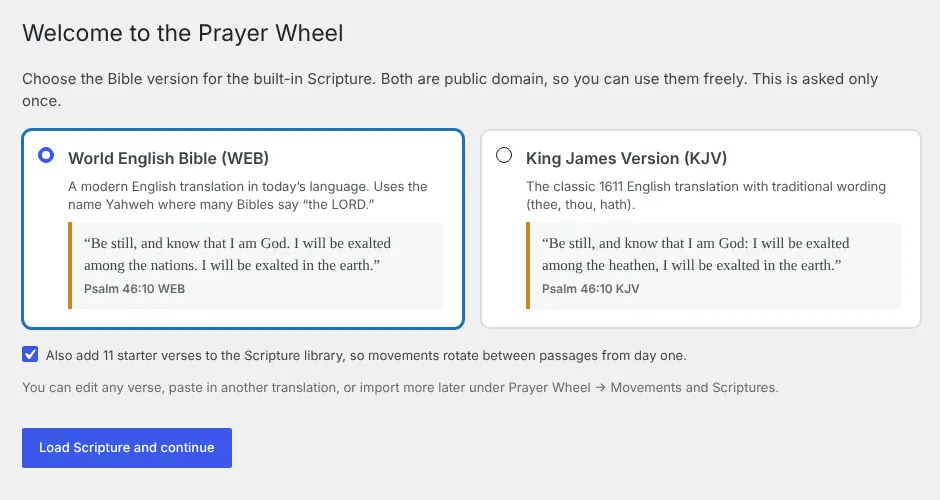
The one-time setup screen after the first activation.
The block’s sidebar lets you set that page’s starting prayer time and experience. With the shortcode, use [[prayer_wheel duration=”30″ mode=”full”]]. Duration can be 15, 30, 60, any number of minutes up to 240, or pace for no timer. Visitors can still change both on the page.
Settings screen
| Section | What you set |
|---|---|
| Branding | Church name, tagline, location line, city, logo, and button color |
| Welcome text | Small heading, main heading, introduction, and each group’s label, subtitle, and wheel color (UP / Presence, and so on), with a live preview of the wheel |
| Defaults & features | Starting prayer time and experience; show or hide the minutes counter, phone instructions, Home Screen instructions, the Dick Eastman credit, and the wheel and movement list repeated above the footer (off for new sites); whether visitors’ notes are kept in their browser for the day |
| Feedback | An email address and contact name. The email shows the feedback box and a “Need help?” link in the footer; leave it blank to hide both |
| Scripture credits | The copyright notice shown at the bottom of the page |
| Footer line | One line of text at the very bottom |
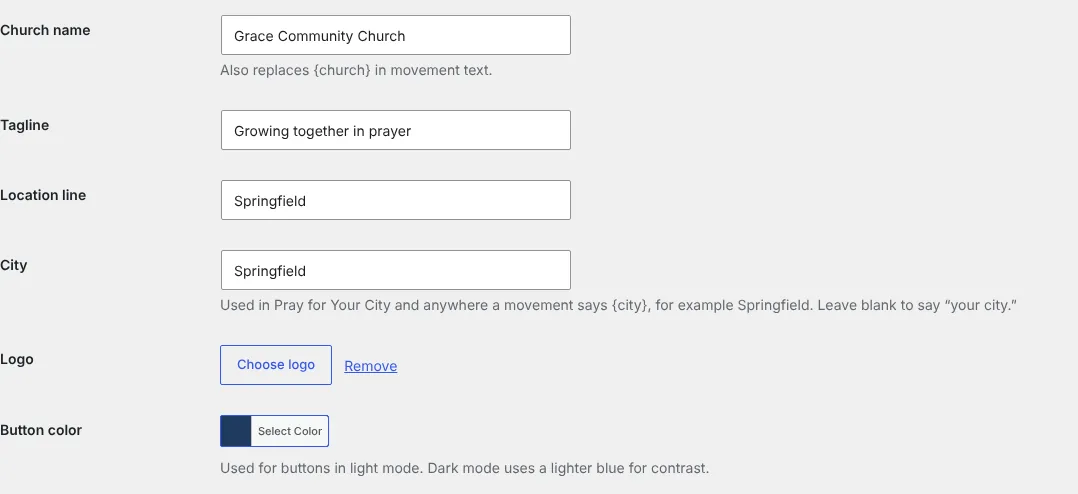
Example settings for a church named Grace Community Church in Springfield.
In the introduction, {up}, {in}, and {out} become the colored group labels. In movement text, {church} becomes the church name, {City} becomes the city in titles, and {city} becomes the city in sentences. With City set to Springfield, movement 10 reads “Pray for Springfield”; leave City blank and it says “Pray for Your City.”
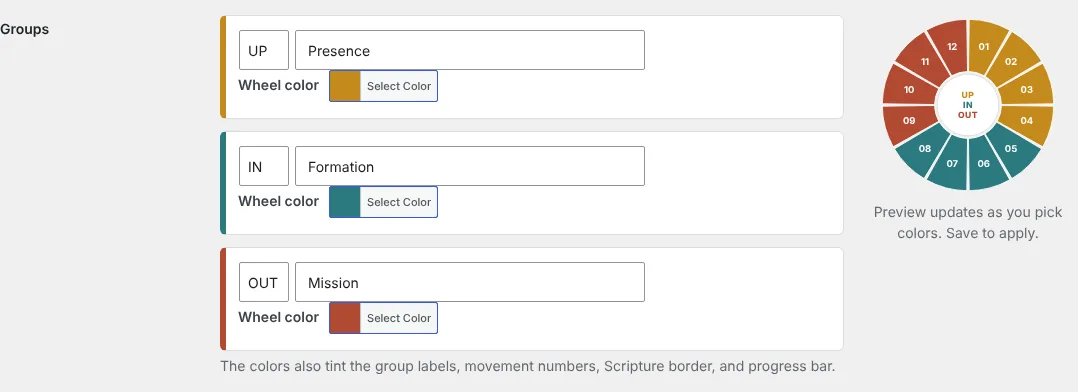
Each group’s label, subtitle, and wheel color, with the live preview on the right.
Movements screen
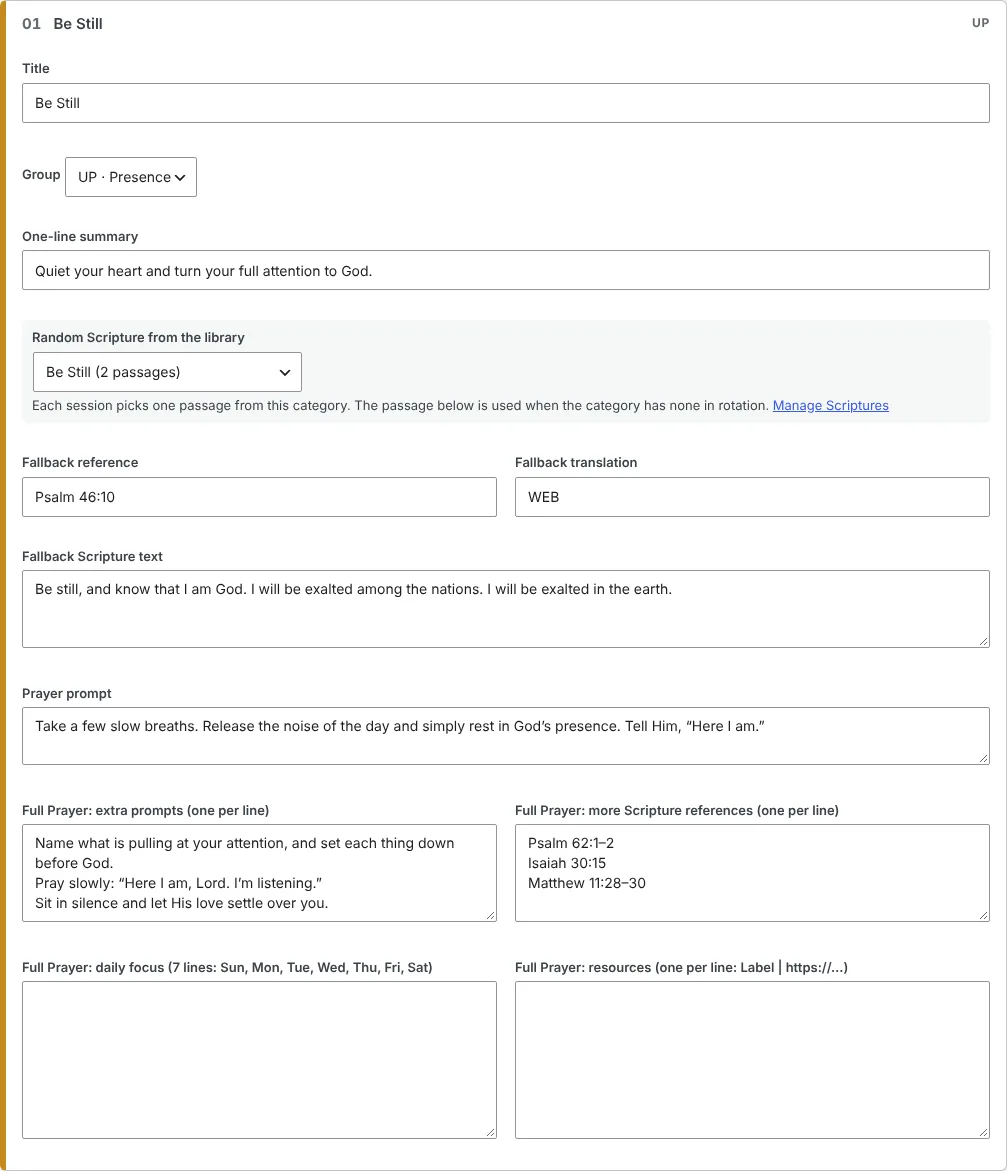
Prayer Wheel → Movements lists all twelve. Click one to open it and edit:
- Title, group, and one-line summary
- Random Scripture from the library: the category this movement draws a passage from each session, or Off
- Fallback reference, translation, and text: used when the library is off for this movement or its category has no passages in rotation
- Prayer prompt, shown in Simple and Full Prayer
- Full Prayer only: extra prompts and more Scripture references (one per line), a daily focus (seven lines, Sunday through Saturday) and its heading, resources (one per line, written Label | https://…), and sources & credits (links allowed)
- Prayer lists (Full Prayer): click Add a list, then give it a heading, an optional introduction, and items, one per line. Write Name | prayer prompt to show a bold name with the prompt under it. Use {count} in the heading for the number of items (“View all {count} countries & prayer prompts”) and {church} for your church name. Check Show expanded to open the list on screen; otherwise it sits behind a View all button. Lists with no items stay hidden. The missionaries list on Pray for the World fills itself from Our Missionaries.
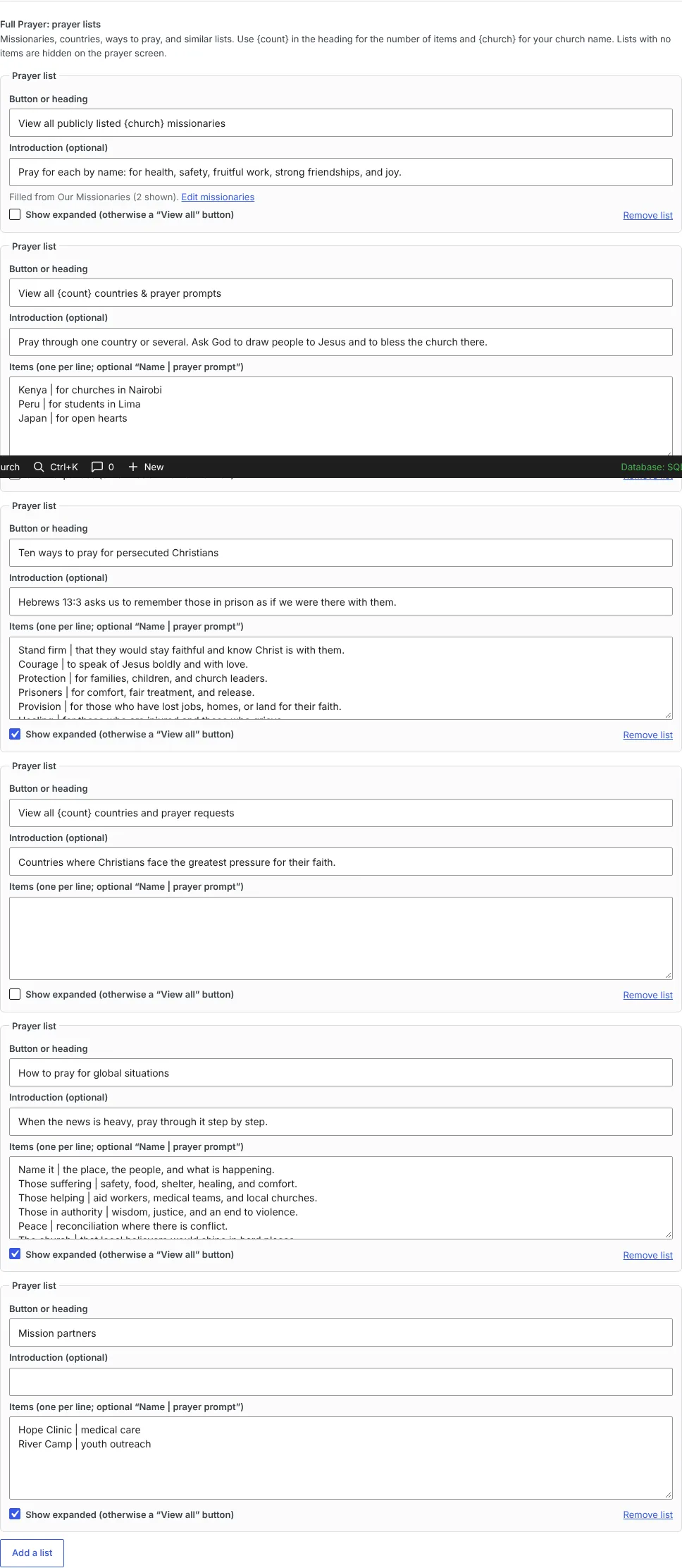
Prayer lists on Pray for the World. The first fills itself from Our Missionaries.
Click Save movements at the bottom. Restore default movements puts back the original content and erases your edits.
Scriptures screen
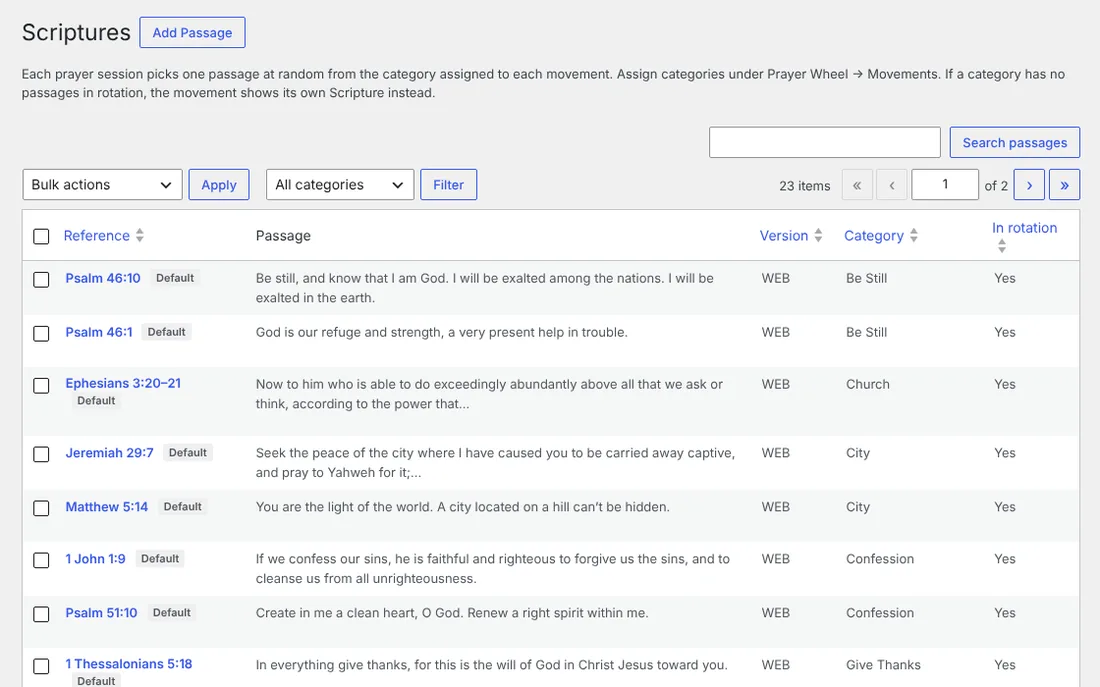
Prayer Wheel → Scriptures is a library of passages that keeps the wheel from showing the same verse every time. Each session picks one passage at random from the category assigned to each movement.
| Field | What to enter |
|---|---|
| Passage | The verse text (required) |
| Reference | Book, chapter, and verse, such as Psalm 23:1 (required) |
| Version | Short label shown after the reference, such as WEB, KJV, or ESV |
| Category | Which movement it belongs to. The twelve starting categories match the movements: Be Still, Praise, Give Thanks, Pray the Word, Listen, Surrender, Confession, Intercede, Church, City, Nation, World. You can type a new one |
| In rotation | Uncheck to keep a passage without it being chosen |
- Click Add Passage, fill in the fields, and click Add passage. Add and start another keeps the same category and version for the next one. To bring in a passage, type its reference and click Fill from Bible; the same button sits beside each movement’s fallback reference.
- To add many at once, save a spreadsheet as CSV with the columns Passage, Reference, Version, Category, and use Import at the bottom of the screen. Exact duplicates are skipped. Download a sample file gives you a starter set of eleven World English Bible verses.
- Use the search box and category filter to find passages. Hover a row to Edit or Delete it, or tick several and use Bulk actions to delete them or take them in or out of rotation.
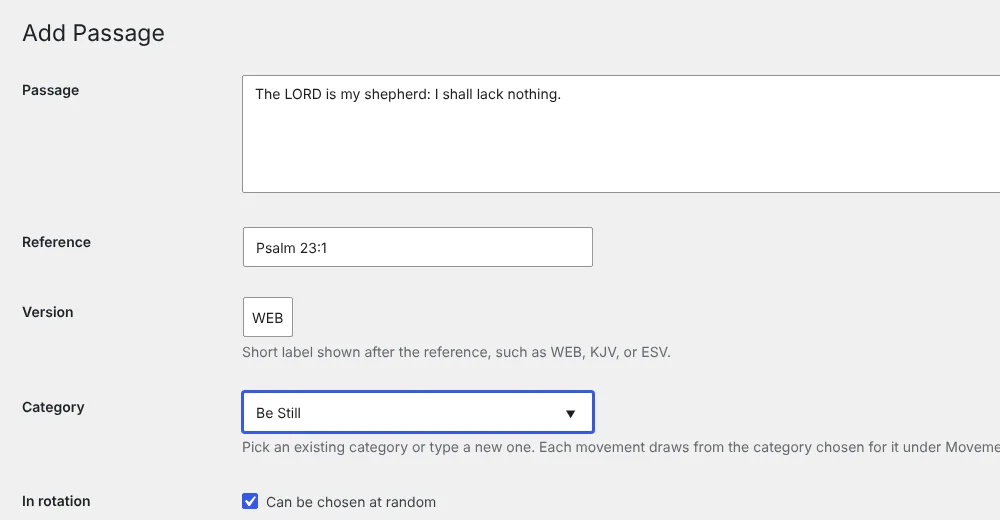
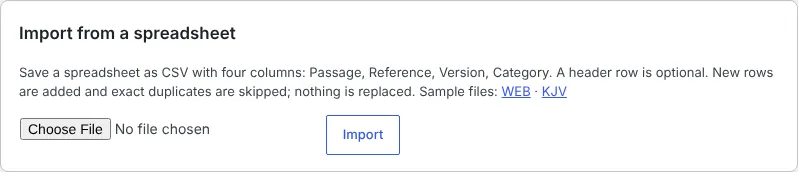
Adding one passage (top) and importing a CSV file (bottom).
When you upgrade from 1.0, each movement’s current verse is copied into the library and the movement is set to its matching category, so nothing changes until you add more. A yellow notice lists any category a movement uses that has no passages in rotation.
Our Missionaries screen
Prayer Wheel → Our Missionaries shows a card for each missionary and ministry partner your church supports, with their photo, location, and prayer focus. Everyone set to show appears, with their photo, under “View all publicly listed [church] missionaries” during Pray for the World in Full Prayer.
| Field | What to enter |
|---|---|
| Photo | Optional; pick one from the Media Library. A square photo works best. Without one, the card shows initials |
| Name | A person, family, or team, such as “The Smith family” |
| Location | City and country, or a region, such as “Nairobi, Kenya” |
| Prayer focus | Optional; what to pray for. Left blank, the screen suggests health, safety, fruitful work, and joy |
| Show on the prayer page | Uncheck to keep someone off the public page; the card is marked Hidden |
- Click the Add a missionary card, fill in the editor that opens, and click Save.
- Click any card to edit it. Choose photo opens the Media Library; Remove deletes the missionary.
- Drag cards to change their order, then click Save order. In the editor, Move earlier and Move later do the same from the keyboard.
The prayer page is public. For anyone serving in a sensitive place, uncheck Show on the prayer page, or use initials, a region, and no photo, such as “J. & M. — North Africa.”
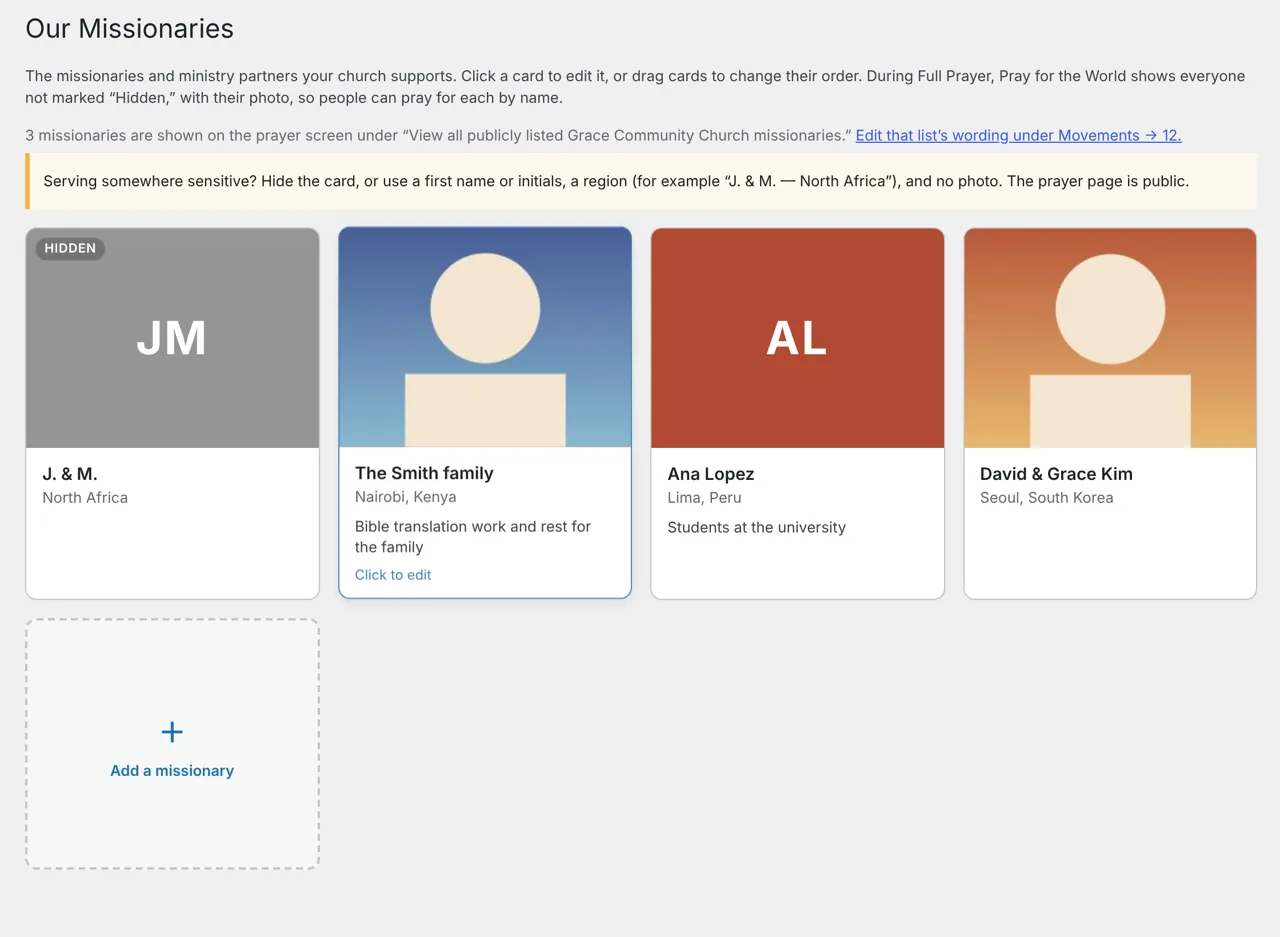
Each missionary is a card. Click one to edit it; drag to reorder.
Local Churches screen
Prayer Wheel → Local Churches holds other churches in your city, so people can pray for them by name during Pray for the Church in Full Prayer.
- Type your city, with the state if the name is common (“Springfield, Illinois”), and click Find churches. The search uses OpenStreetMap and can take up to 20 seconds; if one search server is busy, it tries another.
- Tick the churches to include, or type in the filter and click Select all shown, then click Add selected churches. Churches already on your list are greyed out.
- Edit any name, denomination, or street. Click Add a church by hand for any the search missed, uncheck Show to keep a church on the list without showing it, and click Sort A–Z to put them in order. Click Save churches.
- Choose Churches to pray for each day (1 to 10, or all). The prayer page features that many each day, taking turns through the list, with a “View all” list underneath.
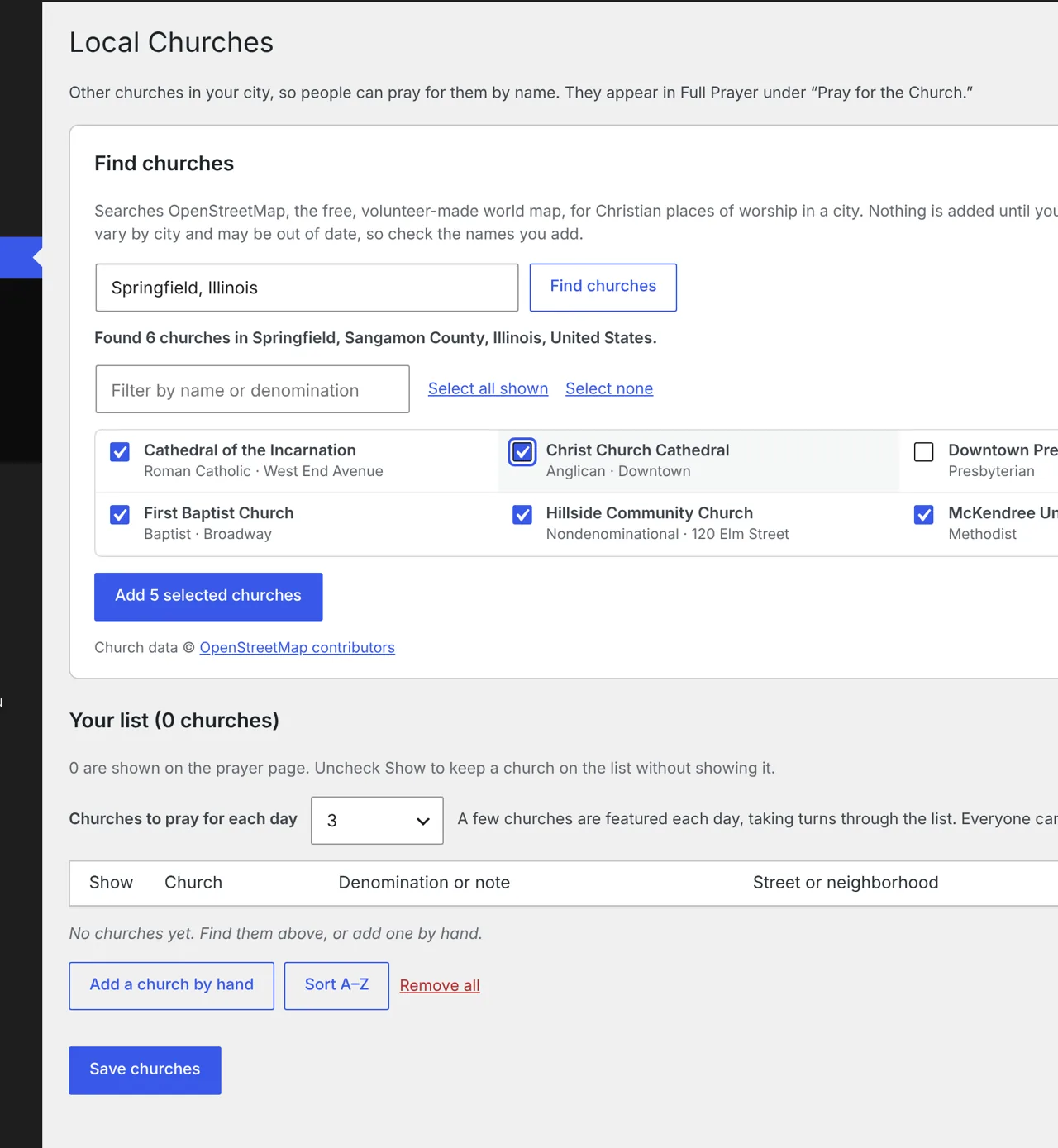
Find churches, tick the ones to include, then manage your list below.
OpenStreetMap listings are made by volunteers and can be missing or out of date, so check the names you add. When any church from the search is shown, the prayer page credits OpenStreetMap.
Prayer totals
The top of the Settings screen shows total minutes prayed and sessions completed across everyone who used the page. Reset totals sets both back to zero; it can’t be undone.
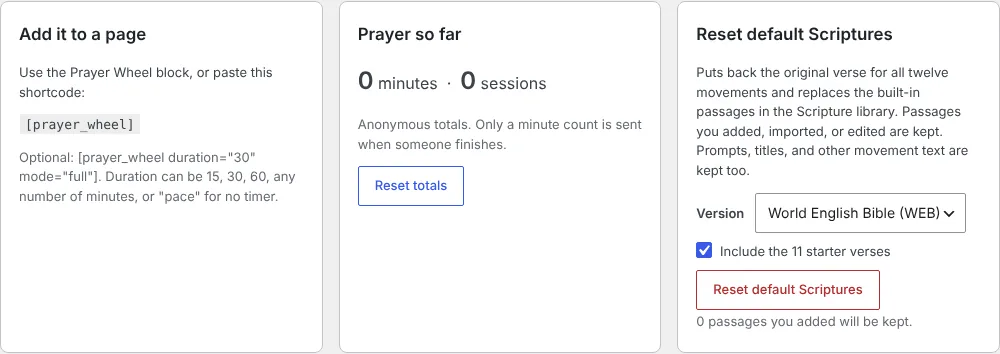
Reset default Scriptures
The Reset default Scriptures box on the Settings screen starts the built-in Scripture over in WEB or KJV. It puts back the original verse, reference, and library category for all twelve movements and replaces the built-in passages in the library, plus the 11 starter verses if that box is checked. Titles, prompts, daily focus, and other movement text are kept.
Passages you added, imported, or edited are never deleted. Built-in passages carry a Default tag on the Scriptures screen; editing one removes the tag and makes it yours, so a reset keeps it. The box shows how many of your passages will be kept.
- Add church name, logo, and colors
- Proofread all twelve Scripture passages, then add more under Scriptures (or import the sample file)
- Add a feedback email
- Add the block to a page and test a 15-minute prayer on a phone
Privacy, Scripture, and common questions
What is saved, and where
| Information | Where it lives | Sent to the church site? |
|---|---|---|
| Minutes prayed in a finished session | Church website total | Yes, the number only |
| Your settings and your personal minute total | Your own browser | No |
| Prayer requests | Your own browser | No |
| Notes | Your own browser, for the day (or erased on Close if your church turns that off) | No |
| City typed into the Local Churches search (administrators only) | Sent to OpenStreetMap only when an administrator clicks Find churches; results are kept on the church website for 12 hours | Never sent from visitors’ phones |
No names, accounts, or sign-ins are involved. Clearing your browser’s data or switching phones erases your requests and personal total.
Scripture translations
The complete World English Bible (WEB) and King James Version (KJV) are built in, both public domain; the movements use the one chosen at setup. Any “Read and reflect” reference opens from the built-in text, unless the Scripture library has a passage with the same reference, which is used instead. To use another translation such as the ESV, add its passages to the Scripture library and the publisher’s required notice under Settings → Scripture credits. Stay within the publisher’s quotation limits.
Common questions
The chime doesn’t play. Turn on Transition cues, tap Test chime, and check that your media volume is up and the phone isn’t on silent. Keep the page open on screen.
The screen keeps going dark. Some phones don’t let websites keep the screen awake. Use Guided Access (iPhone) or App Pinning (Android) and set Auto-Lock to Never while you pray.
My prayer requests disappeared. Requests are stored only in the browser where you added them. They don’t move between phones, and they’re erased if you clear browsing data or use private browsing.
I lost my notes. Notes are kept only in the browser where you wrote them, and only for that day. They don’t move between phones, and private browsing or clearing browsing data removes them. Tap Save my notes on the finish screen to keep a copy.
The minutes counter didn’t go up. A session must last at least one minute to count. Two sessions finished within the same minute from one phone count once.
A movement always shows the same verse. Open Prayer Wheel → Movements and check that the movement has a category chosen, then check under Scriptures that the category has more than one passage in rotation. The number beside each category in the dropdown is its count.
My edits to a movement don’t show. Click Save movements, then refresh the page. If your site uses a caching plugin, clear its cache.